- Why GBP Products and Services Are More Important Than Ever in 2026
- Understanding the Difference: Products vs. Services on GBP
- What Are GBP Products?
- What Are Google Business Services?
- How to Add Products to Your Google Business Profile
- Step 1 — Access Your Product Catalog
- Step 2 — Fill in Your Product Details
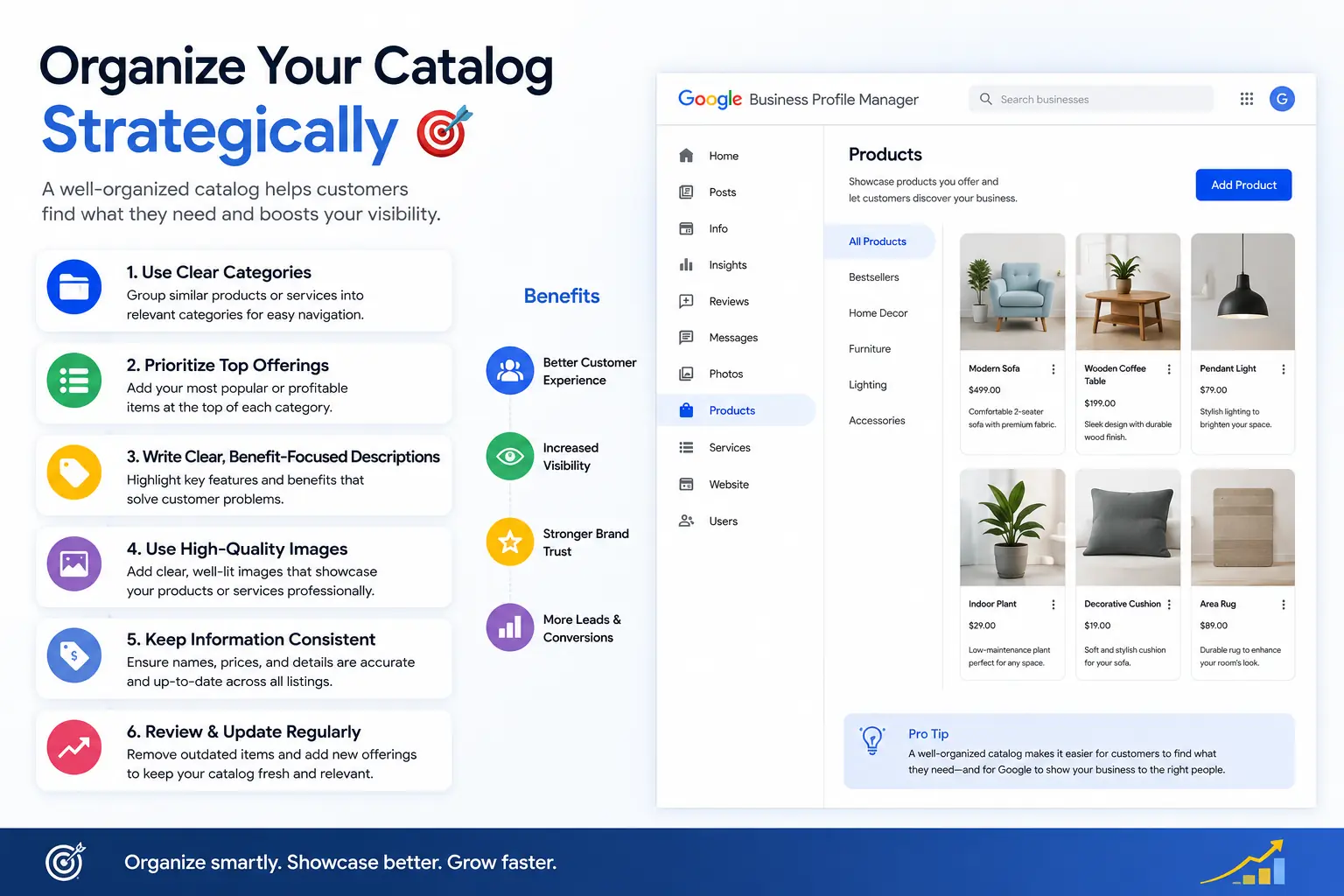
- Step 3 — Organize Your Catalog Strategically
- How to Add Services to Your Google Business Profile
- Accessing and Editing the Services Section
- Writing Service Descriptions That Actually Rank
- Structuring Service Categories for Maximum Coverage
- 7 Best Practices for High-Performing GBP Product Listings
- Common Mistakes That Undermine Your Products and Services Sections
- Keyword Stuffing in Descriptions
- Skipping Photos on Product Listings
- Leaving Outdated Listings Live
- Service-Based Businesses Ignoring the Services Section
- How GBP Products and Services Directly Affect Your Local SEO Rankings
- Quick-Reference Checklist: Products and Services Optimization
- Products Section Checklist
- Services Section Checklist
- Ongoing Maintenance Best Practices
How to Add Products and Services to Your Google Business Profile (2026 Guide)
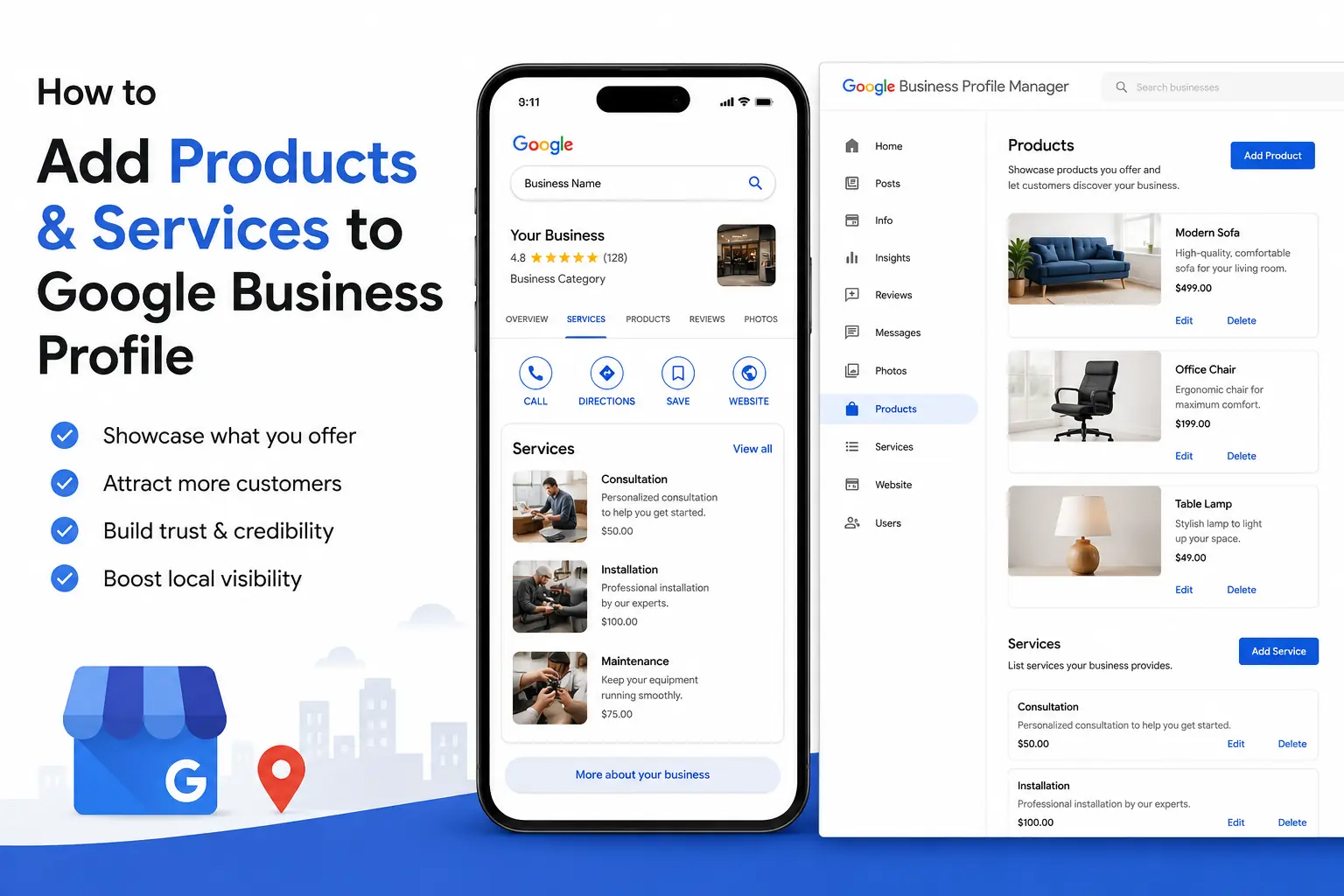 Most local business owners spend hours perfecting their Google Business Profile name, address, and photos — then completely ignore two of the most powerful conversion features available to them: the Products catalog and the Services section. This is a critical missed opportunity. Businesses that fully populate their GBP products and services listings appear in more relevant search queries, give potential customers a clearer reason to choose them over competitors, and — according to Google's own data — receive significantly more direction requests and website clicks than profiles that leave these sections blank. If your profile is sitting half-empty right now, this guide will walk you through everything you need to know to fix that today.
Why GBP Products and Services Are More Important Than Ever in 2026
Google's local search algorithm has evolved dramatically over the past two years. In 2026, Google actively uses the content inside your Products and Services sections to match your profile to specific, high-intent search queries. When someone searches "custom wedding cakes near me" or "emergency HVAC repair downtown," Google doesn't just scan your business name — it indexes the detailed content across your entire profile, including every product name, description, and service category you've listed.
Here's what the data tells us:
- Profiles with a fully populated Products section receive up to 30% more clicks to their website compared to profiles with empty catalogs.
- Businesses that list all their core services in the Services section rank in the Local 3-Pack for 2–3x more keyword variations than those that don't.
- Product listings with images see 42% higher engagement than text-only entries, according to aggregated GBP performance data from GMB Guru client accounts.
The bottom line: leaving these sections incomplete is the equivalent of having a storefront with no window display. You're open for business, but nobody knows what you sell. If you haven't yet taken a full audit of your profile, our Google My Business optimization service covers a complete review of every profile section, including Products and Services.
Understanding the Difference: Products vs. Services on GBP
Before diving into the how-to steps, it's important to understand that Google treats Products and Services as two entirely separate features — each with its own interface, purpose, and display behavior on Search and Maps.
What Are GBP Products?
The Products catalog is a visual, shoppable section that appears on your Google Business Profile panel on both mobile and desktop. It functions similarly to a mini-storefront. Each product entry can include a name, price (or price range), category, description (up to 1,000 characters), a photo, and a call-to-action button that links to your website.
This feature is available to most business types except businesses that have been categorized as primarily automotive dealerships or certain large chain retailers who use a separate product inventory feed. For the vast majority of small and medium-sized businesses — retail shops, restaurants, salons, home services companies, professional service providers — the Products catalog is fully available and free to use.
What Are Google Business Services?
The Services section is a structured list of the services your business provides, organized by category. Unlike Products, Services entries don't have a photo slot — but they do allow a name and a description of up to 300 characters per service item. Google uses this structured data heavily when determining whether your business is relevant to a service-based search query.
For service-area businesses and professional service providers (plumbers, lawyers, accountants, marketing agencies, etc.), the Services section is often more impactful than the Products catalog for driving organic local search visibility.
You can learn more about how Google structures business profile data in Google's official documentation on adding products to your Business Profile.
How to Add Products to Your Google Business Profile
Adding GBP products takes less than 10 minutes once you know the steps. Here's exactly how to do it in 2026, using the current interface.
Step 1 — Access Your Product Catalog
- Go to Google Search and search for your business name while logged into the Google account that owns the profile.
- Your GBP management panel will appear at the top of the results. Click "Edit profile".
- Scroll down to the "Products" section and click the pencil/edit icon, or click "Add product" if the section is empty.
- Alternatively, you can access this from the Google Business Profile Manager dashboard at business.google.com.
Step 2 — Fill in Your Product Details
For each product, you'll be prompted to enter the following fields. Don't skip any of them — every field you complete improves both the visual appeal and the SEO value of the listing:
- Product name: Use the actual name customers search for. Include relevant keywords naturally — for example, "Handmade Soy Candles – 8oz" is better than just "Candle."
- Category: You can create custom categories to organize your products. Use these to mirror how customers think about your offerings (e.g., "Gift Sets," "Seasonal Items," "Best Sellers").
- Price: Enter an exact price or a price range. Profiles with visible pricing receive higher engagement because they reduce friction for buyers comparing options.
- Description: Write up to 1,000 characters. Use this space to describe the product's benefits, materials, use cases, or differentiators. Naturally incorporate relevant search terms without keyword stuffing.
- Photo: Upload a high-resolution image (minimum 720 x 720 pixels). Use real product photography where possible. Avoid stock photos for your own products — authenticity performs better.
- Button link: Choose from "Order online," "Buy," "Learn more," or "Get offer," and link directly to the relevant product page on your website.
Step 3 — Organize Your Catalog Strategically
Don't add products randomly. Structure your catalog the way a well-organized store would arrange its shelves. Use 3–6 meaningful categories and place your highest-margin or most popular items first within each category. Google displays a carousel of product images in the Knowledge Panel — the first 4–6 products are what most users see before scrolling, so lead with your best offerings.
 How to Add Services to Your Google Business Profile
The Services section works differently depending on your business category. Some business types receive a pre-populated list of common services that Google suggests — you can select from these and add custom ones. Others start with a blank slate. Here's how to handle both scenarios.
Accessing and Editing the Services Section
- From your GBP management panel in Google Search, click "Edit profile."
- Navigate to the "Services" tab at the top of the editor.
- You'll see your primary business category listed as a service section header. Under it, you'll find either Google's suggested services or an empty list.
- Click "Add a service" to create a custom entry, or toggle on any pre-suggested services that apply.
Writing Service Descriptions That Actually Rank
Each service allows a 300-character description. That may seem short, but 300 characters is enough to include your core keyword, a value proposition, and a differentiator. Here's a before-and-after example:
Weak entry: "Roof repair services available."
Strong entry: "Emergency and scheduled roof repair for residential and commercial properties. Storm damage assessments, leak detection, and same-day patching available in the greater Phoenix area."
The stronger version includes location signals, service urgency keywords, and specific service types — all within the character limit. This is exactly the kind of content Google uses to match your profile to high-intent local searches.
Structuring Service Categories for Maximum Coverage
If your business has multiple primary and secondary GBP categories (which it should — choosing the right GBP categories is a foundational optimization step), each category can have its own set of associated services. Make sure you're populating the services list for every active category, not just your primary one. This multiplies the number of search queries your profile is eligible to rank for.
7 Best Practices for High-Performing GBP Product Listings
Adding products is just the starting point. Here's how to make each listing work as hard as possible:
- Use keyword-rich product names. Research what your customers actually type into Google when looking for what you sell, and mirror that language in your product titles.
- Write unique descriptions for every product. Don't copy and paste from your website. Google values fresh, profile-specific content.
- Update seasonal products regularly. Profiles that show recent activity signal to Google that the business is active, which positively influences ranking.
- Include pricing whenever possible. Even a "starting from" price reduces bounce behavior. Customers who see transparent pricing are more likely to click through.
- Use consistent naming conventions. If you sell multiple sizes or variants, use a naming structure like "Product Name – Size/Variant" for easy scanning.
- Link every product to a specific landing page. Don't link to your homepage. Link to the exact product or category page on your website to minimize the customer's journey.
- Audit your catalog quarterly. Remove discontinued products immediately. A product listing that leads to a 404 error damages both user experience and your profile's credibility.
Common Mistakes That Undermine Your Products and Services Sections
Even experienced business owners make these errors. Avoid them to keep your profile performing at its best.
Keyword Stuffing in Descriptions
It's tempting to load your product and service descriptions with every keyword variation imaginable. Don't. Google's algorithms are sophisticated enough to detect unnatural keyword density and may suppress your profile's visibility as a result. Write for the human reader first — the keywords will follow naturally.
Skipping Photos on Product Listings
Product entries without images receive significantly less engagement. If you don't have professional product photography, a clean smartphone photo with good lighting is far better than no photo at all. According to Google's own research, consumers are 65% more likely to visit a business after viewing its visual content in search results.
Leaving Outdated Listings Live
A product or service listing that no longer exists — or links to a broken URL — tells Google (and your customers) that your profile isn't actively maintained. This can negatively affect your local ranking signals. Review your full catalog at least once per quarter and before/after every seasonal transition.
Service-Based Businesses Ignoring the Services Section
If you're a service-area business — a plumber, electrician, landscaper, accountant, or similar — and you're not using the Services section to its full capacity, you are leaving a significant portion of your potential search visibility on the table. The Services section is one of the most underutilized features in all of local SEO. For a broader look at how your profile competes in local search, the complete GBP optimization guide covers every major ranking factor in detail.
How GBP Products and Services Directly Affect Your Local SEO Rankings
Google's local ranking algorithm weighs three primary factors: Relevance, Distance, and Prominence. Your Products and Services content directly influences Relevance — the degree to which your profile matches what a searcher is looking for.
When you add a product called "Organic Green Tea Candles" with a detailed description, Google creates an indexed data point that can match your profile to searches like "organic candles near me," "green tea scented candles [city]," and "eco-friendly gift candles." Without that listing, your profile simply wouldn't be a candidate for those queries.
Similarly, a detailed service entry for "Tankless Water Heater Installation" positions your plumbing business for highly specific, high-conversion queries that a generic "Plumbing Services" entry would miss entirely. The more granular and specific your listings are, the more long-tail search queries you're eligible to capture — and long-tail local searches consistently convert at higher rates than broad terms.
If you want professional support ensuring your full profile is optimized for maximum local search coverage, our local SEO services are designed specifically for businesses that want to dominate their local market.
Quick-Reference Checklist: Products and Services Optimization
Use this checklist to confirm your GBP Products and Services sections are fully optimized:
Products Section Checklist
- ☑ All active products are listed with a unique, keyword-rich name
- ☑ Every product has a complete description (aim for 150–300 words)
- ☑ Pricing is included on every applicable listing
- ☑ Each product has a high-quality photo uploaded
- ☑ All products are organized into 3–6 logical categories
- ☑ Every listing has a button linked to the correct product page on your website
- ☑ Discontinued products have been removed
- ☑ Seasonal or promotional products are updated at least quarterly
Services Section Checklist
- ☑ All primary and secondary GBP categories have associated service entries
- ☑ Every service has a unique 300-character description (not left blank)
- ☑ Service descriptions include location signals and specific service details
- ☑ Custom services have been added for offerings not covered by Google's pre-suggested list
- ☑ Services are reviewed and updated whenever your business offerings change
- ☑ Service names mirror the language your customers use in local searches
Ongoing Maintenance Best Practices
- ☑ Set a recurring quarterly calendar reminder to audit both sections
- ☑ Monitor GBP Insights to see which products and services drive the most clicks
- ☑ Cross-reference your top-performing GBP content with your website's organic traffic to identify alignment opportunities
- ☑ Keep an eye on competitor profiles in your local area — if they're listing services you offer but haven't added yet, close that gap immediately