- Why Multi-Location GBP Setup Is Critical for Local Search
- Step 1 — Build the Right Account Structure Before You Do Anything Else
- Use a Dedicated Business Google Account
- Organize Locations into Location Groups
- Assign the Correct User Roles
- Step 2 — Creating Individual Listings for Each Location
- Using Google's Bulk Upload Tool for 10+ Locations
- NAP Consistency Is Non-Negotiable
- Step 3 — Verifying Multiple Locations at Scale
- Bulk Verification for Chains and Franchises
- Video Verification for Newer or Flagged Locations
- Step 4 — Optimizing Each Location Listing Individually
- Write Location-Specific Business Descriptions
- Select the Right Categories and Attributes Per Location
- Link Each Listing to a Unique Location Landing Page
- Upload Unique, High-Quality Photos for Each Location
- Step 5 — Managing Reviews Across All Locations
- Step 6 — Publishing GBP Posts Across Multiple Locations Efficiently
- Step 7 — Avoiding Suspensions Across Your Entire Account
- Step 8 — Ongoing Monitoring and Maintenance
- Multi-Location GBP Setup Checklist
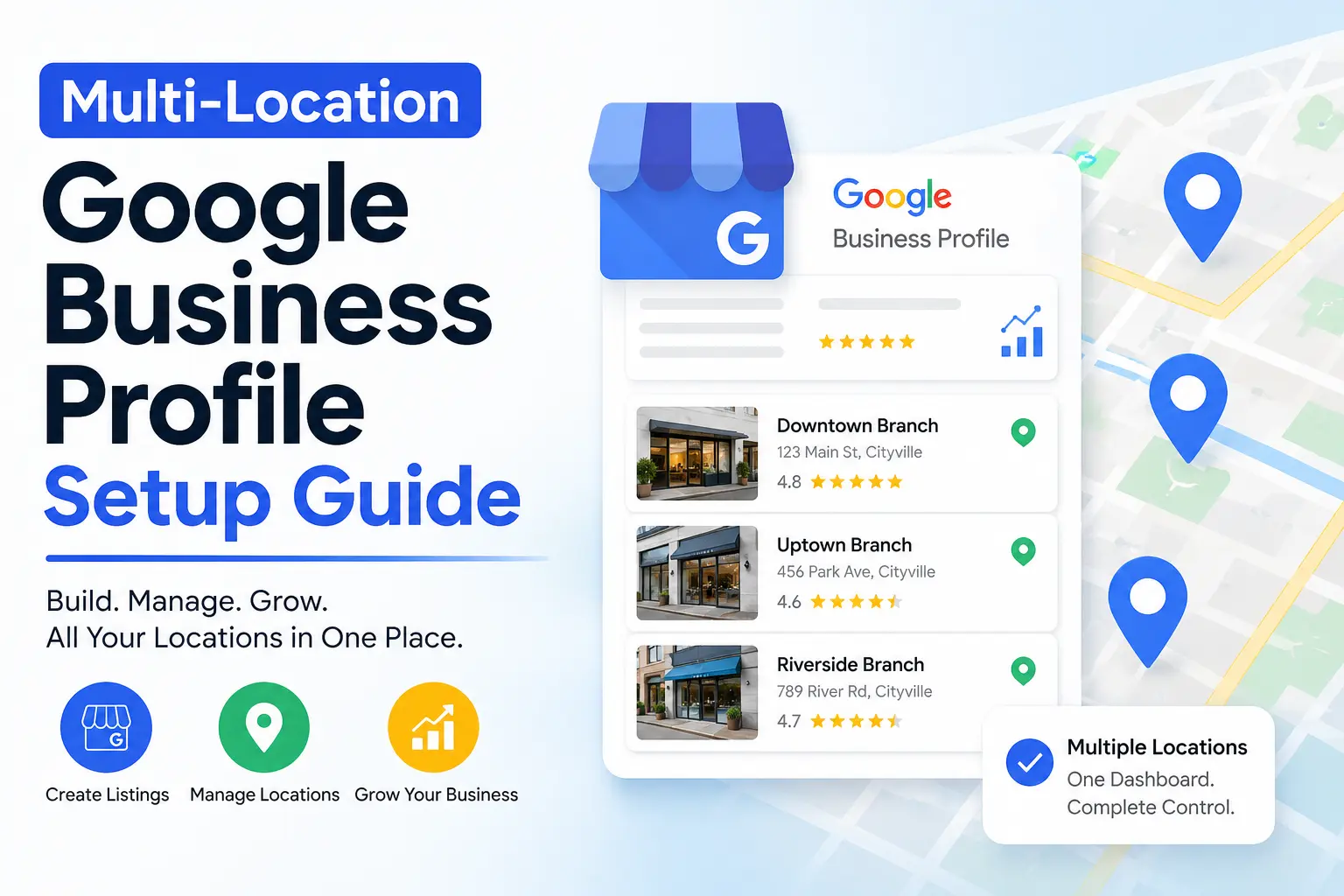
How to Set Up Google Business Profile for Multiple Locations the Right Way
Managing a single Google Business Profile is challenging enough — but when your brand spans five, fifteen, or five hundred locations, the stakes multiply fast. A single misconfigured listing can suppress your entire brand's visibility in local search, trigger account-level suspensions, or push customers straight to a competitor down the street. The good news? Google has built a robust infrastructure specifically for multi-location businesses, and when you use it correctly, the results are transformative. Businesses with fully optimized multi-location GBP setups consistently capture more map pack placements, drive higher foot traffic, and generate measurably better local ROI than those managing profiles ad hoc. This guide walks you through every critical step — from account architecture to bulk verification to per-location optimization — so you get the setup right the first time.
 Why Multi-Location GBP Setup Is Critical for Local Search
Google's local search algorithm is hyper-geographic. When someone searches "coffee shop near me" or "auto repair in downtown Austin," Google surfaces results based on proximity, relevance, and prominence — all of which are tied directly to individual GBP listings. If your brand has ten locations but only three of them have claimed, verified, and optimized profiles, the other seven are essentially invisible to nearby searchers.
According to Google's official Business Profile guidelines, each physical location that serves customers at that address is eligible for its own separate GBP listing. That means a 50-location franchise should have 50 individual, fully optimized profiles — not one "main" listing trying to do all the heavy lifting.
The business case is compelling: research consistently shows that the Google Map Pack (the top three local results) captures between 40% and 60% of all clicks for local intent searches. If your locations aren't in that map pack in their respective service areas, you're leaving significant revenue on the table every single day.
Step 1 — Build the Right Account Structure Before You Do Anything Else
The single most common (and costly) mistake multi-location businesses make is creating profiles under personal Google accounts or scattered across multiple unrelated accounts. This makes centralized management nearly impossible and dramatically increases suspension risk. Here's the architecture you need before you create a single listing.
Use a Dedicated Business Google Account
Create one primary Google account using a company domain email address — for example, gbp-admin@yourbrand.com. This account will serve as the Owner of your Business Profile Manager (formerly Google My Business dashboard). Never use a personal Gmail account as the primary owner for a multi-location brand. If that employee leaves, you risk losing access to dozens of listings simultaneously.
Organize Locations into Location Groups
Inside Google Business Profile Manager, you can create Location Groups (also called business accounts) to organize your listings. Best practice for franchises and chains is to create location groups by region, state, or franchise zone. For example:
- YourBrand — Southeast Region (covering Florida, Georgia, South Carolina)
- YourBrand — Midwest Region (covering Ohio, Indiana, Illinois)
- YourBrand — West Coast (covering California, Oregon, Washington)
This structure allows you to assign regional managers as Managers or Owners of their specific location group without granting them access to all locations brand-wide. It also simplifies bulk editing and reporting.
Assign the Correct User Roles
Google Business Profile supports three user permission levels: Owner, Manager, and Site Manager. For a multi-location setup:
- Owner: Your corporate GBP admin — full control over all locations, including deletion and ownership transfer
- Manager: Regional managers — can edit listings, respond to reviews, post updates, but cannot delete or transfer
- Site Manager: Individual location staff — limited to responding to reviews and Q&A only
Document this structure in a shared internal spreadsheet and review permissions quarterly. Outdated permissions from former employees are a leading cause of unauthorized profile edits and listing suppression.
Step 2 — Creating Individual Listings for Each Location
With your account structure in place, it's time to create the actual listings. For brands with fewer than 10 locations, manual creation works fine. For 10 or more locations, Google's bulk upload tool is the only scalable approach.
Using Google's Bulk Upload Tool for 10+ Locations
Google provides a bulk location upload spreadsheet template directly inside Business Profile Manager. To access it, go to your Business Profile Manager dashboard, click "Add locations," and select "Import locations." Download the official template — do not use your own spreadsheet format, as column headers must match exactly.
Key columns in the bulk upload template include:
- Store code: A unique internal identifier for each location (e.g., NYC-001, LA-002) — this is critical for bulk edits later
- Business name: Must be exactly your real-world business name with no keyword stuffing
- Address line 1 & 2: Full street address, formatted consistently
- City, State/Province, Postal code, Country: Separate columns, no abbreviations in city names
- Phone: Use a unique local phone number for each location — never use a single corporate number for all locations
- Website: Link to the specific location's landing page, not the generic homepage
- Primary category: Must match an official Google Business Profile category
- Hours: Individual hours per location — do not use generic brand-wide hours
Before uploading, run your spreadsheet through a data quality check. Inconsistent address formatting — even something as minor as "St." vs. "Street" — can cause duplicate listing flags or verification failures across dozens of entries at once.
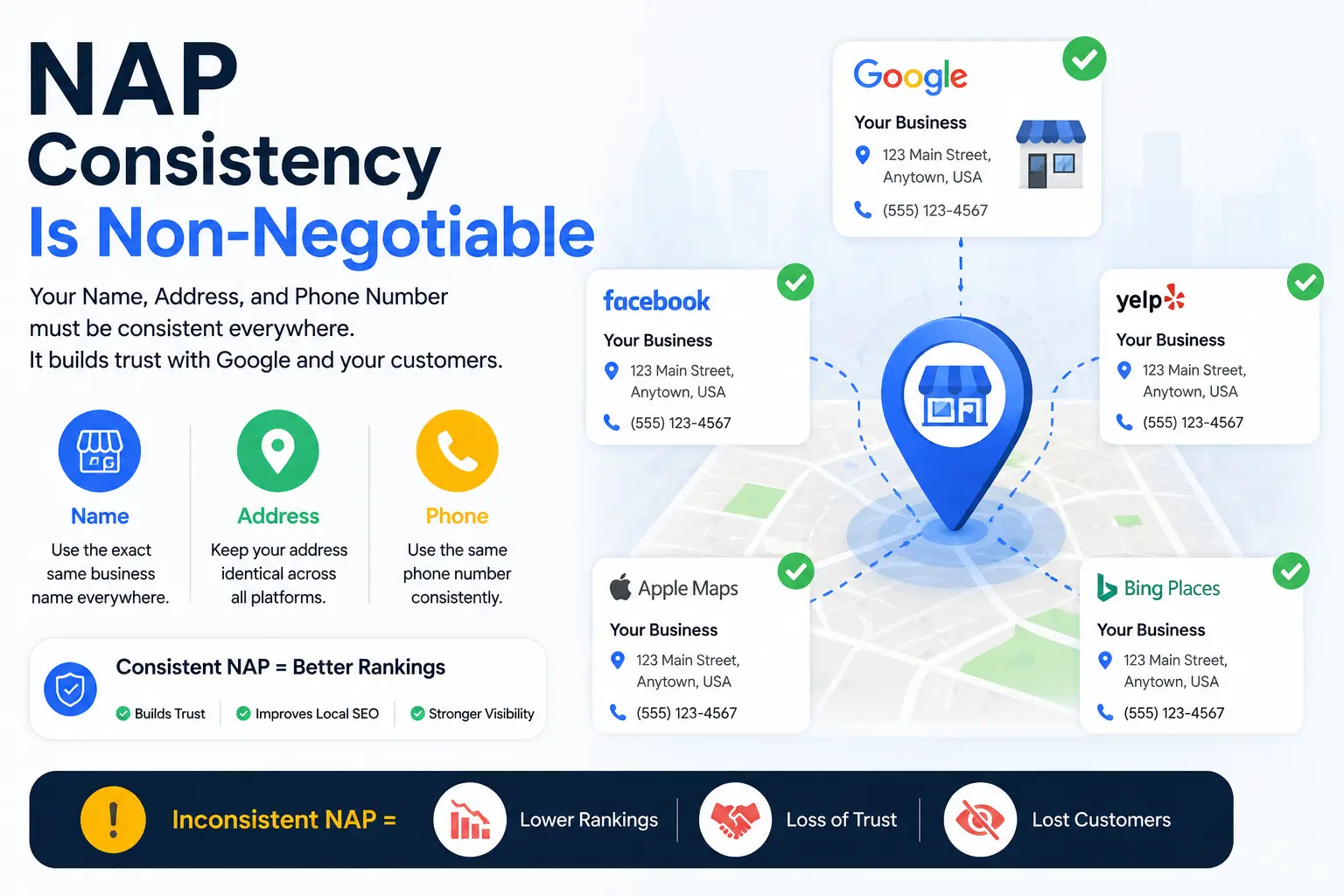
NAP Consistency Is Non-Negotiable
NAP stands for Name, Address, and Phone number. For multi-location businesses, NAP consistency must be maintained not just across GBP listings, but across every directory, citation, and website page where your locations appear. Google cross-references these data points to assess listing legitimacy. Inconsistencies — like your address appearing as "Suite 400" in GBP but "Ste. 400" on Yelp — can suppress your local rankings and, in some cases, trigger a soft suspension. To learn more about why GBP issues escalate, read our guide on why your Google Business Profile is losing customers in 2026.
 Step 3 — Verifying Multiple Locations at Scale
Verification is where many multi-location setups stall out. Each location must be verified individually before it appears publicly on Google Maps and in search results. Fortunately, Google offers a streamlined path for qualifying businesses.
Bulk Verification for Chains and Franchises
If your business has 10 or more locations, you may qualify for bulk verification. Instead of verifying each listing one by one via postcard, phone, or video, bulk verification allows Google to verify all locations simultaneously after a one-time review of your account. To request bulk verification, you submit a verification request form inside Business Profile Manager and wait for Google's review, which typically takes 1–2 weeks.
To qualify, your account must meet several criteria:
- All locations must be legitimate, staffed physical locations (not virtual offices or PO boxes)
- Your Business Profile Manager account must be in good standing with no policy violations
- Each location must have a unique, verifiable address
- Your brand must operate consistently across all locations (same name, same category)
New locations added after bulk verification is approved are typically auto-verified or require only a quick individual verification step, rather than restarting the full bulk review process.
Video Verification for Newer or Flagged Locations
In recent years, Google has been increasingly requiring video verification for new listings — especially in categories prone to spam or in markets with high GBP abuse. This involves recording a short video walkthrough of your business exterior, interior, and operational signage. If a specific location gets flagged for video verification, refer to our detailed Google Business video verification service to understand exactly what Google needs to see and how to pass on the first attempt. Failed video verifications add weeks of delay and can trigger additional scrutiny on your entire account.
Step 4 — Optimizing Each Location Listing Individually
Creating and verifying listings is only half the job. An unoptimized GBP listing ranks poorly, converts poorly, and fails to differentiate your brand from competitors. Every single location needs to be individually optimized — not just copy-pasted from a brand template.
Write Location-Specific Business Descriptions
Google allows up to 750 characters in the business description field. Many multi-location brands make the mistake of using one identical description across all locations. This is a missed opportunity and a potential signal of low-quality, duplicated content. Instead, write descriptions that mention the specific neighborhood, city, or regional detail relevant to that location. For example: "Our Austin South Congress location has served the 78704 community since 2019, with extended weekend hours and free on-site parking." This type of geographic specificity directly supports local keyword relevance.
Select the Right Categories and Attributes Per Location
Your primary category should be identical across all locations — it defines what your business is. But secondary categories and attributes can and should vary based on what's actually offered at each location. A restaurant chain where one location has a full bar and another does not should reflect that difference in their attributes. Google's attributes (like "wheelchair accessible," "outdoor seating," "accepts credit cards," "dine-in available") are real factors customers use to filter search results. Leaving them blank or inaccurate costs you qualified traffic. For a deeper breakdown of how categories affect rankings, see our guide on Google Business Profile categories.
Link Each Listing to a Unique Location Landing Page
The website URL field in your GBP listing should point to a location-specific landing page on your website — not your generic homepage. Each location landing page should include that location's address, phone number, hours, photos, embedded Google Map, and locally relevant content. This creates a reinforcing signal loop: Google sees the GBP listing and the linked web page as consistent, location-specific entities, which strengthens your local authority for that area.
Upload Unique, High-Quality Photos for Each Location
Listings with photos receive 42% more requests for directions and 35% more website clicks than those without, according to Google's own data. For multi-location brands, the temptation is to use the same set of stock or corporate photos across all listings. Resist this. Upload photos that are genuinely specific to each location — the exterior storefront, the interior layout, the parking area, the team members at that branch. Google's algorithm and human visitors alike respond better to authentic, location-specific imagery.
Step 5 — Managing Reviews Across All Locations
At scale, review management becomes a significant operational challenge. A 30-location brand receiving an average of 10 reviews per location per month means 300 reviews per month that need timely, thoughtful responses. Ignoring this is not an option — Google's algorithm treats review response rate and recency as ranking signals, and customers actively read owner responses before making purchasing decisions.
Implement a review management workflow that assigns each location's reviews to a responsible team member, sets a response time SLA (aim for under 48 hours), and uses approved response templates that can be personalized quickly. Never post identical copy-paste responses across multiple locations — Google and customers both recognize and penalize lazy, generic responses.
Step 6 — Publishing GBP Posts Across Multiple Locations Efficiently
Google Business Profile Posts (updates, offers, events) are one of the most underused ranking and engagement tools available. For multi-location brands, the challenge is publishing relevant posts at scale without creating a full-time content production operation.
The practical approach is a two-tier content strategy:
- Brand-level posts: National promotions, seasonal campaigns, product launches — pushed to all locations simultaneously using the bulk post tool in Business Profile Manager or a third-party GBP management platform
- Location-level posts: Local events, community involvement, location-specific offers — created by regional or store managers using a content calendar and approved template library
Aim for a minimum of two posts per location per month. Locations that post consistently outperform dormant listings in local pack rankings, often dramatically so.
Step 7 — Avoiding Suspensions Across Your Entire Account
This is the section every multi-location business owner needs to read carefully. When you manage dozens or hundreds of GBP listings under one account, a policy violation doesn't just affect one listing — it can trigger a cascading suspension that takes down your entire location group or, in severe cases, your entire Business Profile Manager account.
The highest-risk behaviors for multi-location accounts include:
- Adding keyword-stuffed business names (e.g., "Joe's Pizza — Best Pizza in Chicago") instead of your real legal business name
- Listing virtual office addresses or shared co-working spaces as physical business locations
- Creating duplicate listings for the same physical location
- Using the same phone number across multiple distinct location listings
- Asking employees to leave reviews or soliciting fake reviews
- Making rapid, simultaneous bulk edits to core fields like business name or address, which triggers Google's fraud detection systems
If you do experience a suspension — whether a soft suspension (listing unverified) or a hard suspension (listing removed) — act quickly and methodically. Our Google Business Profile suspension recovery service outlines exactly what documentation Google requires and how to submit an effective reinstatement request.
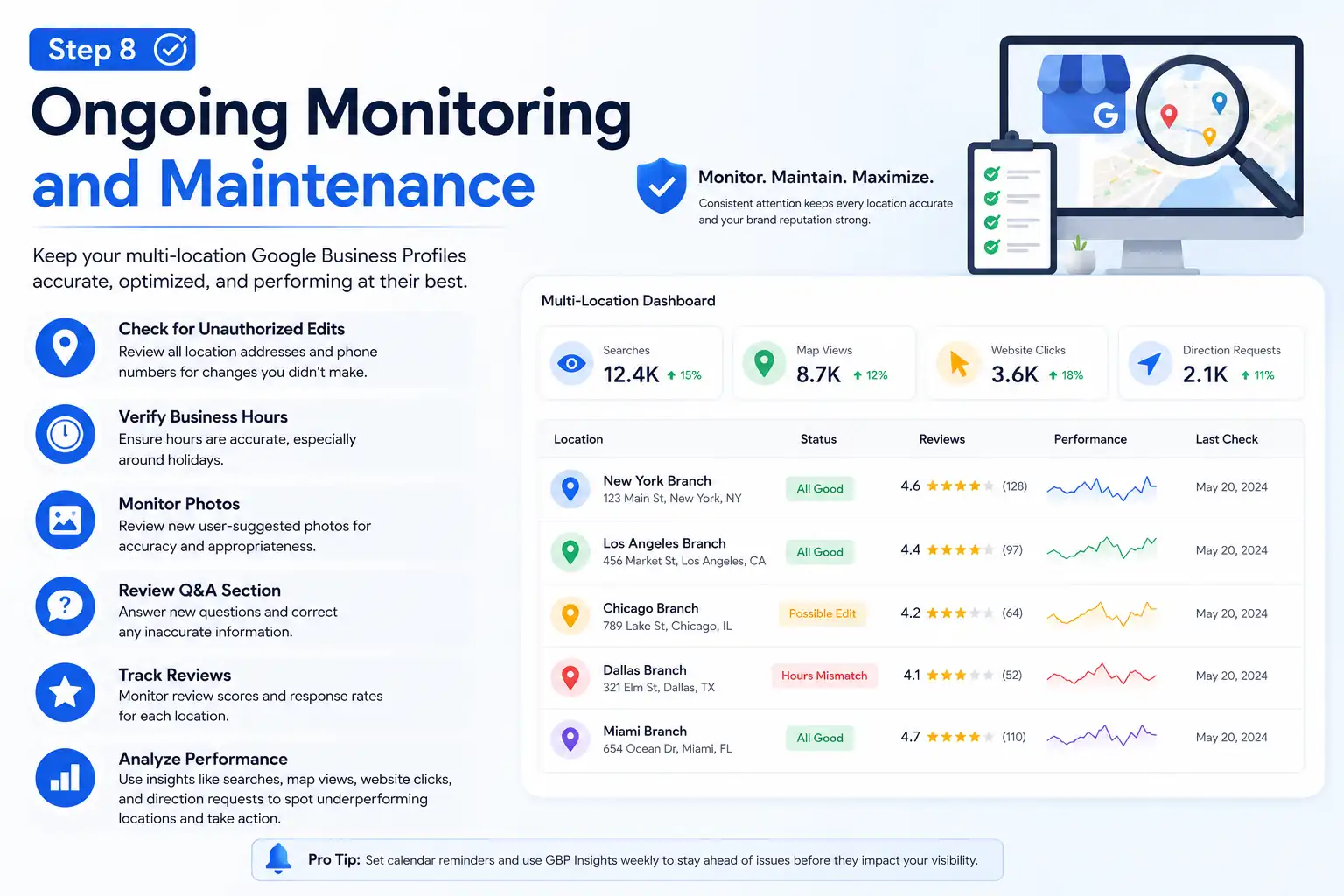
Step 8 — Ongoing Monitoring and Maintenance
Setting up your multi-location GBP correctly is not a one-time task. Google regularly allows users to suggest edits to your listings — including edits that change your address, phone number, or hours without your approval. These crowdsourced edits are one of the most overlooked threats to listing accuracy for multi-location brands.
Establish a monthly audit routine that checks:
- All location addresses and phone numbers for unauthorized edits
- Business hours for accuracy (especially around holidays)
- New user-suggested photos that may be inappropriate or inaccurate
- Q&A section for unanswered questions or incorrect answers
- Review scores and response rates per location
- Performance metrics inside Business Profile Manager (searches, map views, website clicks, direction requests) to identify underperforming locations that need attention
 Multi-Location GBP Setup Checklist
Use this checklist to audit your current setup or guide a new multi-location GBP build from scratch:
- Account structure: One primary business Google account with a company domain email set as Owner
- Location groups: Locations organized into regional or functional groups inside Business Profile Manager
- User permissions: Correct Owner / Manager / Site Manager roles assigned and documented
- Unique listings: One separate GBP listing per physical location — no duplicates
- Store codes: Every location has a unique internal store code assigned
- NAP consistency: Business name, address, and phone number are identical across GBP, website, and all third-party directories
- Unique phone numbers: Each location has its own local phone number — not a shared corporate line
- Verification status: All locations verified (bulk verification applied if 10+ locations)
- Primary category: Correct and consistent primary category across all listings
- Secondary categories & attributes: Filled out individually per location based on actual offerings
- Business descriptions: Unique, location-specific descriptions — no copy-paste duplicates
- Location landing pages: Each listing links to a dedicated, locally-relevant website page — not the homepage
- Photos: Minimum 10 unique, location-specific photos uploaded per listing
- GBP Posts: At least two posts published per location per month
- Review management: Response workflow in place with a sub-48-hour response SLA
- Q&A section: Monitored and pre-populated with common customer questions
- Monthly audit: Scheduled recurring audit to catch unauthorized edits and performance drops
- Suspension monitoring: Alert system in place to detect listing suspensions or removals quickly